Author: Latheesh NK

Fresher’s Job – Programmer Analyst Trainee

Job Description*About HTC Global Services: *

HTC Global Services (HTC) is a leading global provider of Information Technology (IT) and Business Process Services (BPS), headquartered in Troy, Michigan, USA. Established in 1990, HTC is an Inc. 500 Hall of Fame company and one of the fastest growing Asian American companies in the USA. Our client base spans over 2000 organizations across the globe. HTC acquired CareTech Solutions in December 2014 and Ciber, Inc. (Currently Ciber Global LLC) in June 2017. These acquisitions enable us to expand our operational capabilities in Healthcare IT and Technology Transformation services.

HTC is an ISO 9001 and 27001 certified company with processes compliant to SEI CMM Level 5. With over 10 global delivery centers and operating presence in several countries, we serve global clients across multiple time zones. Our ‘Business Partner’ approach enables us to offer high business value for our clients. It also brings in the benefit of repeated business for HTC. Our strategic solutions enable clients to transform and thrive in the changing world.

*Job Description: *

*HTC Global Services- Chennai* hiring freshers (2018 and 2019 ) for *Programmer Analyst Trainee*

*Job Requirements: *

*Key Skills: *

1. Must be good in Technology(OOPs/ C++/ Java/ .net/ Angular JS etc…),

2. Must possess good communication skill(both oral and written).

*Required Experience and Qualifications: *

1. BE/ B.tech, MSc/ MCA/ BSc/ BCA (2019,2018)all streams *except Civil, Mechanical and Aeronautical.*

2. *First class throughout curriculum is mandatory(from 10th standard to degree).*

3. Experience is not mandatory.

*Salary Offered* : CTC 3.00 LPA from Training onwards.

*Additional Information*:

1. *2 rounds of interview will be conducted *on the same day.

2. Shortlisted candidates will be placed in *any part of Software Development life cycle* (development/ Testing/ Quality/ Support based on the requirement).

3. They will be given with *3 months of on the job training*.

4. 3 years of agreement and original certificates will be collected.

*Benefits*

* Provident fund (PF)
* Paid leaves / Leave encashment

*Interested candidates can reach @*

Jayalakshmy EC

Senior HR @ HTC Global Services Limited

official mobile number: 9840558859

Expected Start Date: 30/9/2020

Job Types: Full-time, Fresher, Walk-In

Pay: ₹18,000.00 – ₹20,000.00 per month

Experience:
* work: 1 year (Preferred)
* total work: 1 year (Preferred)

Education:
* Bachelor’s (Preferred)

Work Remotely:
* Temporarily due to COVID-19

Error: Changes to the state or options of database ‘dbname’ cannot be made at this time. The database is in single-user mode, and a user is currently connected to it.

One of my colleague had an issue in dropping a database in her testing environment. She was not able to drop a database as she gets an error message (as below). Let me try to provide what she tried and ended up for every ones understanding.
alter database [dbname] set multi_user with rollback immediate
Drop database [dbname]

Error Message:

Msg 5064, Level 16, State 1, Line 1 Changes to the state or options of database ‘dbname’ cannot be made at this time. The database is in single-user mode, and a user is currently connected to it. Msg 5069, Level 16, State 1, Line 1 ALTER DATABASE statement failed.

Solution:

When I analysed, I could find that the database has gone into single user mode and there was an open session on this database.Since, its a testing environment, I had killed the open session from the database and tried to drop the database by putting it multi user as first step as below and it was successful.

USE master;

DECLARE @killSessions varchar(8000) = '';  
SELECT @killSessions = @killSessions + 'kill ' + CONVERT(varchar(5), spid) + ';'  
FROM master..sysprocesses  
WHERE dbid = db_id('dbname')
EXEC(@killSessions); 

alter database [dbname] set multi_user with rollback immediate
--Drop database [dbname] /*Only if need to be dropped*/

Hope this helps if you come across similar situations.

I’d like to grow my readership. If you enjoyed this blog post, please share it with your friends!

How to read and write backup directory in SQL Server

There is a requirement for me to change the backup directory of a SQL Server instance. Here are few tips related to the sobject and hope it will be useful as a future reference for all of us.

How to read the value of BackupDirectory?

DECLARE @path NVARCHAR(4000)

EXEC master.dbo.xp_instance_regread
            N'HKEY_LOCAL_MACHINE',
            N'Software\Microsoft\MSSQLServer\MSSQLServer',N'BackupDirectory',
            @path OUTPUT, 
            'no_output'

How to write/set a new value of BackupDirectory?

EXEC master.dbo.xp_instance_regwrite
            N'HKEY_LOCAL_MACHINE',
            N'SOFTWARE\Microsoft\MSSQLServer\MSSQLServer',N'BackupDirectory',
            REG_SZ,
            N'\\xx.xxx.xx.xxx\C$\data\Microsoft SQL Server\MSSQL13.MSSQLSERVER\MSSQL\Backup';

Few other important information:

DECLARE @SQLDataRoot nvarchar(512)
DECLARE @DefaultData nvarchar(512)
DECLARE @DefaultLog nvarchar(512)

--Installation Root Info
EXEC master.dbo.xp_instance_regread 
	N'HKEY_LOCAL_MACHINE',
	N'Software\Microsoft\MSSQLServer\Setup',
	N'SQLDataRoot',
@SQLDataRoot OUTPUT
Select @SQLDataRoot

-- SQL Data file Info
EXEC master.dbo.xp_instance_regread
	N'HKEY_LOCAL_MACHINE',
	N'Software\Microsoft\MSSQLServer\MSSQLServer',
	N'DefaultData',
@DefaultData OUTPUT
Select @DefaultData

-- SQL Default Default Log file info
EXEC master.dbo.xp_instance_regread
	N'HKEY_LOCAL_MACHINE',
	N'Software\Microsoft\MSSQLServer\MSSQLServer',
	N'DefaultLog',
@DefaultLog OUTPUT
Select @DefaultLog
xp_instance_regread & xp_instance_regwrite are undocumented features, so it may be deprecated any time, however, can be used for non-production or DBA specific tasks at own discretion.

I’d like to grow my readership. If you enjoyed this blog post, please share it with your friends!

Open and Read from an Excel File and plot a chart in Python using matplotlib and tkinter

Today, we are going to see a simple program to read an excel and plot a chart using the data. In this example, we are going to explore few important features like – FileDialog, tkinter etc. Before we go through the details, Let us look at the entire code as below.
import tkinter as tk
from tkinter import filedialog
from matplotlib.backends.backend_tkagg import FigureCanvasTkAgg
from matplotlib.figure import Figure
import pandas as pd

root= tk.Tk()

canvas1 = tk.Canvas(root, width = 800, height = 300)
canvas1.pack()

label1 = tk.Label(root, text='Data Analyser')
label1.config(font=('Arial', 20))
canvas1.create_window(400, 50, window=label1)

def getExcel ():
      global df

      import_file_path = filedialog.askopenfilename()
      df = pd.read_excel (import_file_path)
      global bar1
      x = df['Day']
      y = df['Count']

      figure1 = Figure(figsize=(4,3), dpi=100)
      subplot1 = figure1.add_subplot(111)
      subplot1.bar(x,y,color = 'lightsteelblue')
      bar1 = FigureCanvasTkAgg(figure1, root)
      bar1.get_tk_widget().pack(side=tk.LEFT, fill=tk.BOTH, expand=0)
      subplot1.plot(x, y, color='green', linestyle='dashed', linewidth = 3, marker='o', markerfacecolor='blue', markersize=12)

def clear_charts():
      bar1.get_tk_widget().pack_forget()

browseButton_Excel = tk.Button(text='Load File...', command=getExcel, bg='green', fg='white', font=('helvetica', 12, 'bold'))
canvas1.create_window(400, 180, window=browseButton_Excel)

button2 = tk.Button (root, text='Clear Chart', command=clear_charts, bg='green', font=('helvetica', 11, 'bold'))
canvas1.create_window(400, 220, window=button2)

button3 = tk.Button (root, text='Exit!', command=root.destroy, bg='green', font=('helvetica', 11, 'bold'))
canvas1.create_window(400, 260, window=button3)

root.mainloop()
You can run the above code and see the output. Now, let us quickly go segment by segment to understand better. The below are the code to import tkinter, matplotlib and pandas
import tkinter as tk
from tkinter import filedialog
from matplotlib.backends.backend_tkagg import FigureCanvasTkAgg
from matplotlib.figure import Figure
import pandas as pd
create tkinter object and open a Canvas using the below code.
root= tk.Tk()
canvas1 = tk.Canvas(root, width = 800, height = 300)
canvas1.pack()
Let us configure the basic information for the canvas.
label1 = tk.Label(root, text='Data Analyser')
label1.config(font=('Arial', 20))
canvas1.create_window(400, 50, window=label1)
Function Definitions as below to open the file using filedialog and read the excel. You can see the sample data in the excel used in the example code.
def getExcel ():
      global df
 
      import_file_path = filedialog.askopenfilename()
      df = pd.read_excel (import_file_path)
      global bar1
      x = df['Day']
      y = df['Count']
 
      figure1 = Figure(figsize=(4,3), dpi=100)
      subplot1 = figure1.add_subplot(111)
      subplot1.bar(x,y,color = 'lightsteelblue')
      bar1 = FigureCanvasTkAgg(figure1, root)
      bar1.get_tk_widget().pack(side=tk.LEFT, fill=tk.BOTH, expand=0)
      subplot1.plot(x, y, color='green', linestyle='dashed', linewidth = 3, marker='o', markerfacecolor='blue', markersize=12)
 
def clear_charts():
      bar1.get_tk_widget().pack_forget()
Create buttons to perform the events in the requirements and mainloop invokation.
browseButton_Excel = tk.Button(text='Load File...', command=getExcel, bg='green', fg='white', font=('helvetica', 12, 'bold'))
canvas1.create_window(400, 180, window=browseButton_Excel)
 
button2 = tk.Button (root, text='Clear Chart', command=clear_charts, bg='green', font=('helvetica', 11, 'bold'))
canvas1.create_window(400, 220, window=button2)
 
button3 = tk.Button (root, text='Exit!', command=root.destroy, bg='green', font=('helvetica', 11, 'bold'))
canvas1.create_window(400, 260, window=button3)

root.mainloop()
In the next post, we will see more on plotting multi lines with a real time example in the Canvas.

I’d like to grow my readership. If you enjoyed this blog post, please share it with your friends!

A glance at Anaconda, Jupyter notebook and Python for beginners

Jupyter notebook is traditional IDE for Python. It is a very popular IDE for most of data professionals as its very easy to install and use.
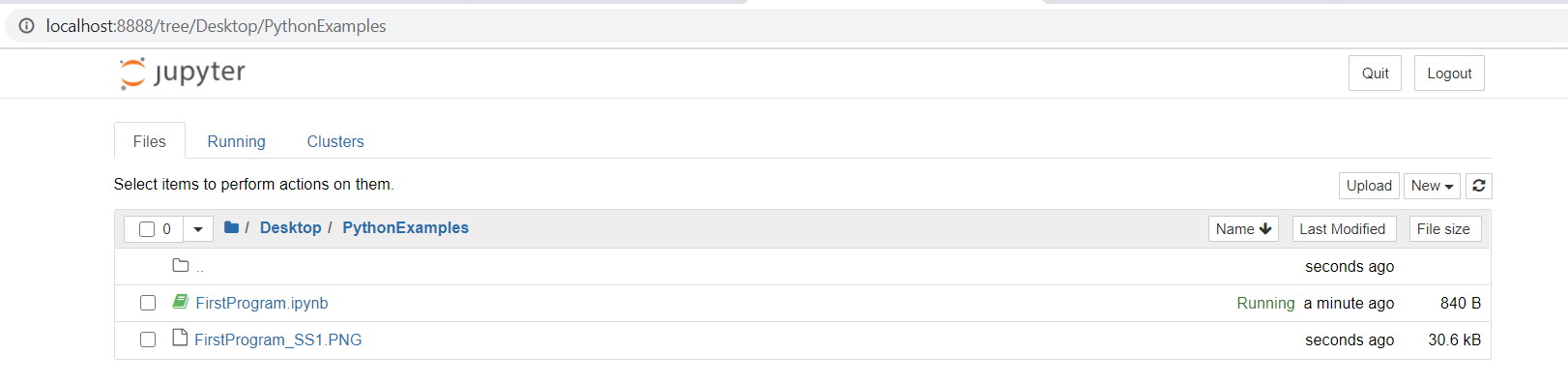
Jupyter notebook basically includes 2 components – jupyter notebook Server and a Browser. Browser communicates to server and process the requests.Browser usually uses a default localhost:8888 to connect to jupyter server.

Now, let us look at Anaconda, a package manager which allows to install many libraries. When install Anaconda, Python and Jupyter comes along with the installation. To install Anaconda, go to https://anaconda.org (for individual -> https://www.anaconda.com/products/individual#windows) and download the latest file which is compatible to the workstation (depending on windows or Mac).

To launch jupyter, launch Anaconda navigator and then select jupyter, which would eventually open a browser where programmers can write and
run the codes.

Writing First Program in Jupyter notebook

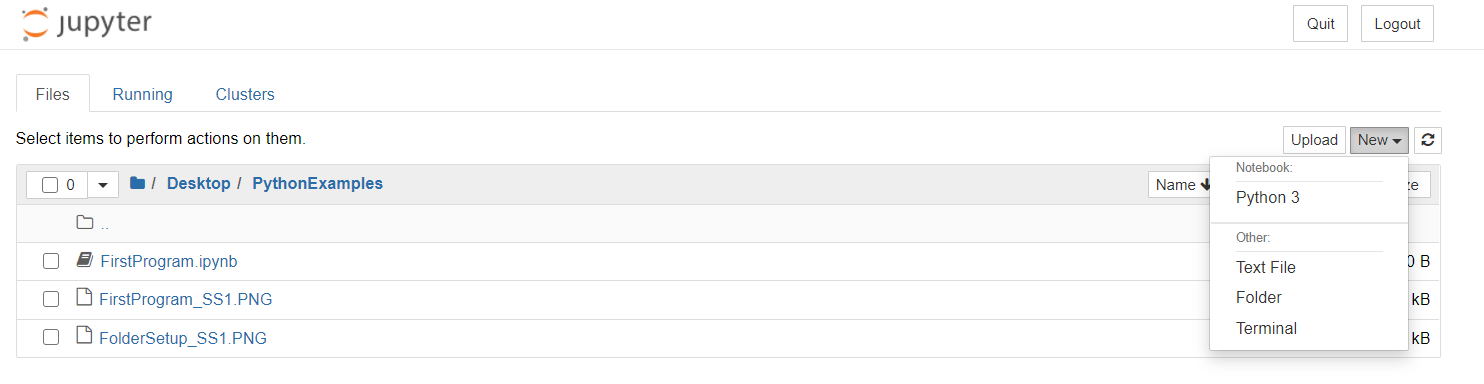
1. Create a folder in Desktop to put save our sample work

2. Create python file by clicking New Python 3(in the screenshot)

3. It will open a code blocker where you can write programs

I am a beginner to Python and am writing these posts as I learn things for two main reasons, not to forget and to share with community. I would like to share your thoughts and experiences in comment section, so we all will be part of learning and sharing!

I’d like to grow my readership. If you enjoyed this blog post, please share it with your friends!