
Topics:
Strings in Python are identified as a continuous set of characters represented in the quotation marks.We can access subset of strings using Index [] operator.
Slicing methods:
str = ‘SQLZealots’
print(‘str = ‘, str)#first character
print(‘str[0] = ‘, str[0])#last character
print(‘str[-1] = ‘, str[-1])#slicing 2nd to 5th character
print(‘str[1:5] = ‘, str[1:5])#slicing 6th to 2nd last character
print(‘str[5:-2] = ‘, str[5:-2])
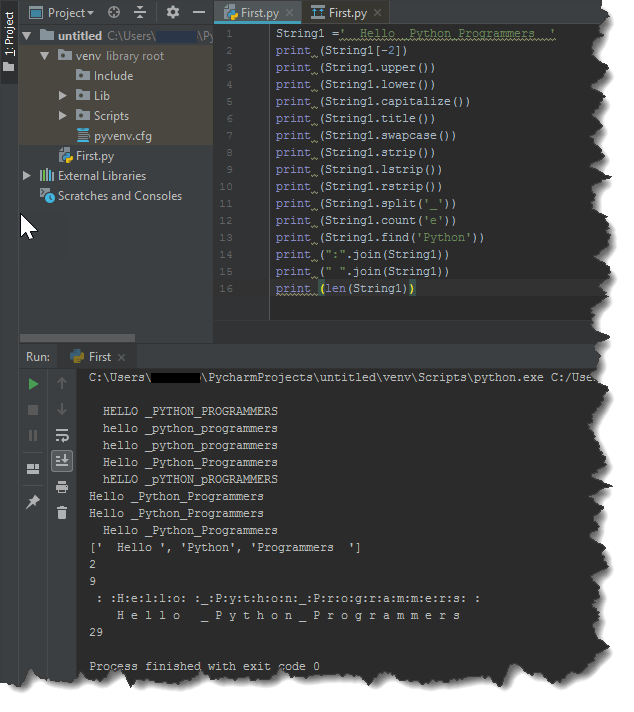
we have many built in methods with strings. I have listed couple of them and have shown the o/p of each method with an example.
string.upper() # get all-letters in uppercase
string.lower() # get all-letters in lowercase
string.capitalize() # capitalize the first letter
string.title() # capitalize the first letter of words
string.swapcase() # converts uppercase and lowercase
string.strip() # remove all white spaces
string.lstrip() # removes white space from left
string.rstrip() # removes white space from right
string.split() # splitting words
string.split(‘,’) # split words by comma
string.count(‘l’) # count how many times l is in the string
string.find(‘Wo’) # find the word Wo in the string
string.index(“Wo”) # find the letters Wo in the string
“:”.join(string) # add a : between every char
” “.join(string) # add a white space between every char
len(string) # find the length of the string
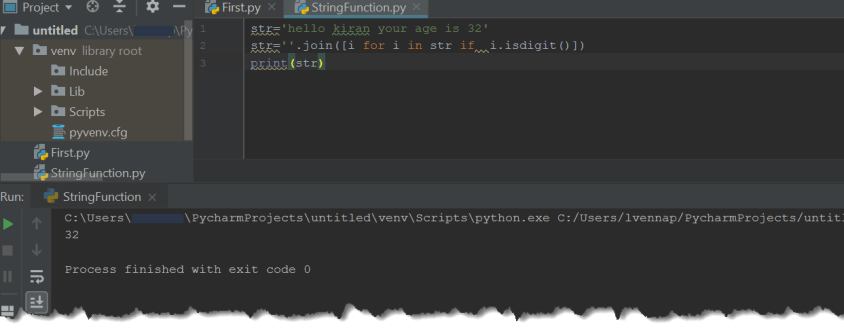
Lets write a small program ,to extract the Numbers only from a given string .
You can find the SQL version of the code from here.
Hope you enjoyed the post. Please share your comments .
See also
Problem Statement:
Recently, I encountered an issue as below with SQL Server Configuration Manager which is a very common issue for most of us. Most of the time, this type of error is related to not having enough permission to see the SQL Server Configuration Manager. However, the case was different for me as I am the administrator for my system.

Observations:
In my laptop, I have multiple SQL versions like 2008 R2, 2014, 2016 and 2017.For some reason, SQL Server Configuration Manager (by default it was pointing to oldest one, nothing but 2008 R2 version) was not able to correctly get the information for all the installed versions. This was causing an issue.
To resolve the issue,
1. we can identify the file location as “C:\windows\syswow64\” OR “C:\Windows\System32\”.
The SQL Server Configuration manager file name should be similar to SQLServerManager**.msc where ** denotes the version of the SQL Server.
2. Open the latest version of SQL Server configuration manager file. This will work as expected.
However, the above is not a complete solution while we open the configuration manager from the start window. This is because, the default configuration manager will still be pointing to the older version of the SQL Server. To change this behavior, we need to do the following steps.
1. Open the “SQL Server Configuration” in start and right click on the icon.

2. Right Click on “SQL Server Configuration Manager” and change the Target file to the latest mmc file.(You should have administrator privilege to do so)

3. Close the Window
From then, you will be successfully able to see the SQL Server Configuration manager that fetch the data as expected.
Lets begin our first program with some of String operations.Python has a built in String class named “str” with many handy features.String literals can be enclosed by either double or single quotes, although single quotes are more commonly used. if you want to use Multi line String then you have to use triple quotes.
First Program
Lets assign three different strings to three different variables and print them.
To start with, open Python IDLE under Start –>Programs
or Type Python Under Run prompt
IDLE is an Interactive interpreter, however, you can’t execute more than one statement at a time.
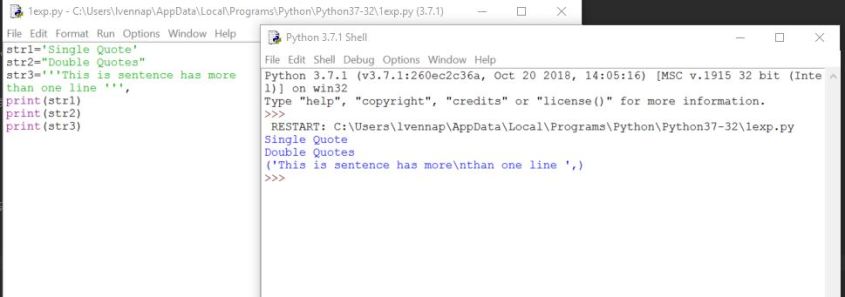
If you want to execute a multi line code program, just copy and paste the below code by opening a new file (CTRL+N) and save it. Then, you can execute the code in the file with ‘key board short cut F5’. output can be seen in the IDLE as shown below:
str1='Single Quote'
str2="Double Quotes"
str3='''This is sentence has more
than one line '''
print(str1)
print(str2)
print(str3)
If you face any error while executing the code or any doubts ,post your query in comments section , happy to assist you.
What is MSDTC?
MSDTC is a acronynm for Microsoft Distributed Transaction Coordinator which is a windows service to maintain the transactions in a distributed environment. The internals of MSDTC is a black box for users, however, this service is very important to maintain the transactions between two different systems. A Distributed transaction is a transaction that spans across multiple machines.Distributed transaction will ensure if there are multi operation happens between servers, if any of the operation is failed and cancelled, none of the operations in the transaction is getting committed in a multi server environment. I am not sure if I can simply explain than this.
Where do we need MSDTC?
Typically, in the context of SQL Server, yes we may need MSDTC for Linked Server usages.If transaction is opened to do some operations across servers in a linked server environment, this needs to be converted as a distributed transaction to maintain the integrity of the data. We need to understand two things clearly here.
1. When two physical machines are communicating with a transaction. If you are using two instances of the same machine, DTC will not be used. However, if the instances are in a cluster, you need to use DTC as you cannot ensure the instances are in the same physical nodes in the cluster environment.
2. Irrespective of type of transaction, whether its implicit or explicit, you need to use DTC. A typical example for implicit transaction is Trigger. Please find more detail here.
How to troubleshoot MSDTC issues?
Troubleshooting MSDTC issues is a pain area as you will not have complete information about the DTC component. We can use DTCPing tool to troubleshoot the issues which will provide much better insights.
DTCPing tool can be downloaded here.
How to configure and troubleshoot using DTCPing tool?
Test Network Connectivity
1. On Computer A, run DTCPing.exe.
2. On Computer B, run DTCPing.exe.
3. On Computer A, type the NetBIOS name of Computer B, and then click Ping.
4. On Computer B, type the NetBIOS name of Computer A, and then click Ping.
NOTE: The DTCPing log file can be found in the same folder as the DTCPing.exe file. The log file name has the following format: “NetBIOSName” + “ProcessID” + .log
You can see more details in the readme.txt available in the tool kit.
See Also:
 SQLZealots