Category: SQL

DENSE_RANK() window function in SQL Server

DENSE_RANK() is an another window function in SQL Server very similar to RANK() in SQL Server.The exception is, it does not skip any rank, leaving no gaps between the ranks. Again, we are using the same sampledata used in ROW_NUMBER() in SQL Server blog post for explaining the difference between RANK and DENSE_RANK.

Syntax for RANK function

DENSE_RANK()OVER(PARTITION BY column_list ORDER BY column_list ASC/DESC)

Step 1: The data is first grouping based on partition column list.

Step 2: As per the order column list the rank is applied on the grouped data from the Step 1.

If you have tie on order column, then the same number will repeat, however, unlike RANK() function it will never skip any rank number in the result set.

Select *,DENSE_RANK()Over(ORDER BY Fees ASC) DenseRank,RANK()Over(Order by Fees ASC) _Rank from SampleData

Hope this post helps you to understand the difference between RANK() and DENSE_RANK() window functions in SQL Server.

Hope you enjoyed this post, share your feedback in comment section. Recommending to go through “Microsoft SQL Server – Beginners Guide” series for more information.

I’d like to grow my readership. If you enjoyed this blog post, please share it with your friends!

RANK() window function in SQL Server

This blog explains the usage of RANK window function in SQL Server. RANK function puts a rank number for each row depending on the group if partition clause is defined, followed by ordering the data defined. Its bit confusing but with an example, it can be easily understood. We are going to use the same sample set that we used for ROW_NUMBER() tutorial, so please refer the post to get the sample DDL and DML.

Syntax for RANK function

RANK()OVER(PARTITION BY column_list ORDER BY column_list ASC/DESC)

Step 1: The data is first grouping based on partition column list.

Step 2: As per the order column list the rank is applied on the grouped data from the Step 1.

If you have tie on order column, then the same number will repeat, however, the missing number will never be allocated to any rows later.

Simple Form of generating a RANK number
Select *,Rank()over(order by Fees asc) RankNumber from SampleData

Rank number on grouping
Select *,Rank()over(partition by CourseID order by Fees asc) RankNumber from SampleData

Hope this is helpful to understand RANK window function in SQL Server.

Hope you enjoyed this post, share your feedback in comment section. Recommending to go through “Microsoft SQL Server – Beginners Guide” series for more information.

I’d like to grow my readership. If you enjoyed this blog post, please share it with your friends!

Converting Row values into String with delimiter in SQL Server

In this post we are going to see how we can convert the Row values into comma separated String. Different SQL versions to achieve this (mentioned below), lets discuss one by one.

  1. Using Coalesce and Substring Function
  2. Using Replace Function
  3. Using Stuff Function
Using Coalesce and Substring Function

In this example, we have converted the column values (RowNO, RowValues) from RowsIntoString table into String value with comma delimiter using coalesce and substring SQL functions.

drop table if exists RowsIntoString

create table RowsIntoString (RowNo int, RowValues nvarchar(100))
insert into RowsIntoString (RowNo, RowValues) 
values (1,'first'),(2,'second'),(4,'third'),(4,'fourth'),(5,'fifth'),(7,'sixth'),(7,'seventh')
,(7,'eighth'),(9,'nineth'),(10,'tenth'),(11,'eleventh')

select * from RowsIntoString

---using Coalesce---
DECLARE @CSkeycol VARCHAR(MAX), @CSkeycol2 VARCHAR(MAX)
select @CSkeycol=COALESCE(@CSkeycol + ', ', '')+cast(RowNo as nvarchar) from RowsIntoString
select @CSkeycol as RowsIntoStringValue

select @CSkeycol2=COALESCE(@CSkeycol2 + ''', ''', '')+RowValues from RowsIntoString
select ''''+@CSkeycol2+'''' as RowsIntoStringValue

---using Substring---
declare @tmp varchar(MAX)=''
declare @tmp2 varchar(MAX)=''
select @tmp = @tmp + cast(RowNo as nvarchar) + ', ' from RowsIntoString
select SUBSTRING(@tmp, 0, LEN(@tmp)) as RowsIntoStringValue

select @tmp2 = @tmp2 + RowValues + ''', ''' from RowsIntoString
select ''''+SUBSTRING(@tmp2, 0, LEN(@tmp2)-2) as RowsIntoStringValue
Using Replace Function

In this example, we have converted the multi row string values into string value with comma delimiter using Replace SQL function.

declare @stg varchar(MAX)
set @stg='second
third
fourth
fifth
sixth
seventh'
select '''' + replace(@stg, char(10),''', ''') + '''' as RowsIntoStringValue
set @stg='1
2
3
4
5
6
7'
select replace(@stg, char(10),', ') as RowsIntoStringValue
Using Stuff Function

In this example, we have Concatenated the Rowvalues with comma which is having same RowNo (in other words, concatenating the RowValues column if RowNo column has more than one values) using Stuff SQL functions.

select * from RowsIntoString where RowNo in (4,7)

select distinct t1.RowNo,
  STUFF(
         (SELECT ', ' + RowValues
          FROM RowsIntoString t2
          where t1.RowNo = t2.RowNo
          FOR XML PATH (''))
          , 1, 1, '')  AS RowValues
from RowsIntoString t1
where RowNo in (4,7)
There is another post written by Latheesh which details another way with string_AGG.

Thanks for reading this blog post, If you enjoyed this, please share it with your friends!

Microsoft SQL Server – A bit of History & Introduction

Microsoft SQL Server is a relational database management system developed by Microsoft early 1980s. The first code was developed in 1980 by Sybase Inc.Later Microsoft teamed up with Ashton-Tate Corp. and developed the first version of Microsoft SQL Server. Later Sybase renamed its version as
Adaptive Server Enterprise leaving the SQL Server name to Microsoft. If you enjoy the features now means lots of efforts are put in and an evolution happened over a period of time.

I am going to share one of my favorite links here that I refer anything related to build versions. (They are very serious and regularly updated and the informations are intact.)
https://sqlserverbuilds.blogspot.com/

There are multiple editions available in SQL Server and you can find different editions and supporting features for each editions.
Editions and supported features of SQL Server 2019 (15.x)
Editions and supported features of SQL Server 2017
Editions and supported features of SQL Server 2016

SQL Server is developed initially to store and retrive data for applications. SQL denotes as Structured Query Language , a programming language to operate data in a relational database management system. As the time passes, it captured lots of attention and improved a lot and added many more new features to cater the customer expectations. Now, SQL Server is a competitive software for any requirements of multi sized projects, transactional, analytical, integration, reporting etc.

How to download SQL Server
https://www.microsoft.com/en-in/sql-server/sql-server-downloads

More about Licensing & Pricing
The pricing is very specific and I would recommend to contact a Microsoft sales partner or licensing expert – Call (1-800-426-9400), Monday through Friday, 6:00 AM to 6:00 PM PST to speak directly to Microsoft licensing specialist.

https://www.microsoft.com/en-us/sql-server/sql-server-2019-pricing
http://www.microsoft.com/en-us/server-cloud/products/sql-server/buy.aspx

See also eBook “SQL Server 2014 Licensing Guide”

Click to access SQL_Server_2014_Licensing_Guide.pdf

Click to access SQL_Server_2016_Licensing_Guide_EN_US.pdf

Issues & Suggestions connect to Microsoft Team
Microsoft listens you through feedback, so feel free to raise your suggestions and you see some issues in the product you can very well post it through this channel.
Questions & Answers
As a beginner, you might have lots of doubts, clarification etc. You can very well use Microsoft Q&A forum and there would be experts available to help you round the clock around the world.

Hope you enjoyed this post, share your feedback in comment section. Recommending to go through “Microsoft SQL Server – Beginners Guide” series for more information.

I’d like to grow my readership. If you enjoyed this blog post, please share it with your friends!

ROW_NUMBER() window function in SQL Server

This blog post explains few methods to generate a running number for a SELECT query. Different SQL versions have different ways to achieve this. Let us quickly see ROW_NUMBER() window function with this blog post.

ROW_NUMBER()OVER(PARTITION BY column_list ORDER BY column_list ASC/DESC)

This returns the sequential number for rows. A Quite simple way in SQL Server so far, note that there are different ways we can generate this numbers on group or set depending on sorted manner.Let us see some of those forms in this post. As first step, let us create a SampleData table populated with few records as below.

Create Table SampleData
(
	CourseId	Int,
	CourseName	Varchar(100),
	Institute	Varchar(100),
	Fees		Int
)

Insert into SampleData
	Values  (1,'SQL Server', 'Aptech', 1000),
			(1,'SQL Server', 'WowTech', 2000),
			(2,'.NET', 'NetTechs', 6000),
			(2,'.NET', 'Aptech', 8000),
			(2,'.NET', 'SimpleLearn', 7500),
			(3,'Python', 'Aptech', 1000),
			(3,'Python', 'SimpleLearn', 1500),
			(3,'Python', 'PyLearn', 1000),
			(3,'Python', 'NetTechs', 1000),
			(3,'Python', 'WowTech', 1000)

Select * from SampleData

--Drop Table SampleData

Simple Form of generating a running number

We can create a running number column with row_number window function as below:

Select Row_Number()Over(order by (Select NULL) ASC) Rn,* From SampleData
Select Row_Number()Over(order by (Select NULL) DESC) Rn,* From SampleData

In the above two example, we can see both ASC and DESC returns the same set of ordering and running number because the order by always on NULL value which would have no effect for ASC and DESC.

Form of generating a running number based on a set of data

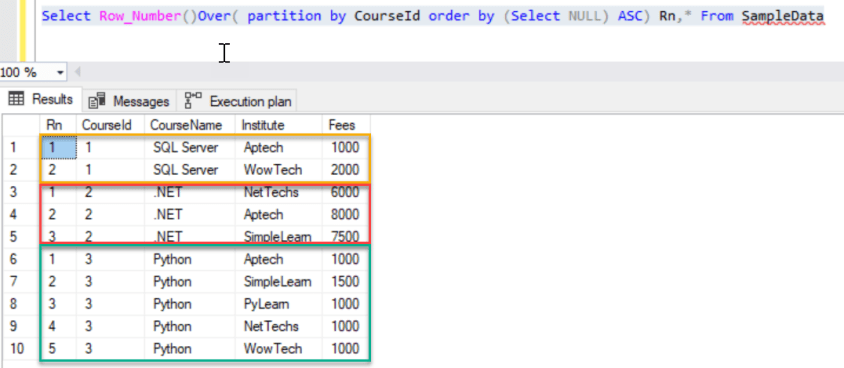
Yes, this is based on set or group data. For an example, if we need to generate a running number for a grouped records and so on, you can introduce the Partition by clause to the above query as below.

Select Row_Number()Over( partition by CourseId order by (Select NULL) ASC) Rn,* From SampleData
Form of generating a running number based on a set of data with a defined order of data

In the above example, we have seen the number based on data, now, we are going to quickly see the numbering is based on group of data as well as ordered in a defined way. In our example, we wanted to see the data group for CourseID should be sorted by its Fees in ascending order.

Select Row_Number()Over( partition by CourseId order by Fees ASC) Rn,* From SampleData

Hope this is helpful to understand better of ROW_NUMBER window function in SQL Server.

Hope you enjoyed this post, share your feedback in comment section. Recommending to go through “Microsoft SQL Server – Beginners Guide” series for more information.

I’d like to grow my readership. If you enjoyed this blog post, please share it with your friends!