Today, let us quickly try to understand an error message as below.
“Database name ‘tempdb’ ignored, referencing object in tempdb.”.
Many of us would have got this message (I do prefer to call this as a warning message, not error message), however, we would not have noticed as it is not causing any fatal results. With this post, I would like to share my thoughts and like to have your views on this as well.
Let us first see when would you get this message?
use tempdb
GO
create Table #Temp_Table(Col1 int)
GO
Select * From tempdb..#Temp_Table
Now, interesting thing, when the query is changed a bit as below, the message is vanished.
Somehow, I was not convinced the above method as a solution, because that was actually against my understanding of 4 part naming convention (servername.databasename.schemaname.objectname). So, we further tried to test with few more combinations to understand how it works internally.
A simple query as below showed #Temp_Table is created with dbo schema.
As next step, tried to create a schema and a new object is created. If you look at the schema of the object, we can clearly see that it is associated with dbo schema not the new schema. That means, the objects created in tempdb database is always creating in dbo, not in any other schema. In fact, the schema part is actually ignoring for temp tables.
create schema testschema
GO
create Table testschema.#Temp_Table10(Col1 int)
Points to ponder
There is NO need of specifying schema for objects created in tempdb database.
Even we specify a schema name, SQL Server simply ignores the schema part.
If you enjoyed this blog post, please share it with your friends!
So you’re tuning a slow query and you create a new index to eliminate a table or clustered index scan. In your testing you find that it works well for some search arguments, but is ignored by the Optimizer for others. You notice that the “ignored” queries tend to return larger record sets. What’s going on here and how do you persuade the Optimizer to use your index (spoiler alert: you don’t!).
Odds are good that you’ve created a non-covering index. This is simply an index that doesn’t have all of the columns necessary to execute a query. Quick quiz…
Which (if any) of the queries below are covered by this index?
CREATE INDEX ix_LastName_FirstName__MiddleName
 ON Person.Person (LastName, FirstName) INCLUDE (MiddleName);
SELECT Title, FirstName, LastName FROM Person.Person WHERE LastName = N’Martinez’;
SELECT * FROM Person.Person WHERE LastName LIKE N’M%’;
SELECT FirstName, LastName FROM Person.Person WHERE LastName = N’Martinez’;
SELECT FirstName, LastName FROM Person.Person WHERE FirstName = N’Daniel’;
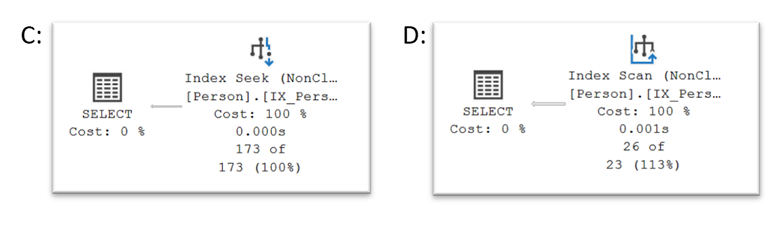
The answer is both C and D. In each case, the index contains all the data necessary to execute the query. You can see that in the respective query plans:
Note: Even though we need to scan the nonclustered index to find the Daniels, it’s still a net win over the cost of having to scan the clustered index (107 vs 3821 logical I/Os).
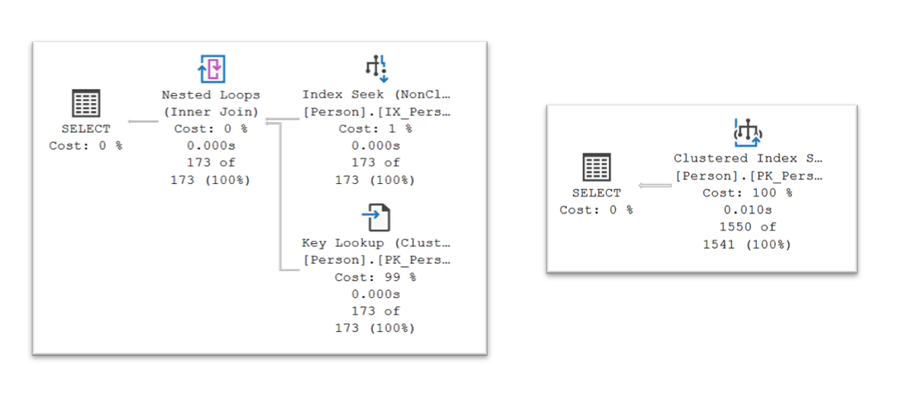
In the absence of a covering index (queries A and B), the Optimizer must choose between indexseeks plus key lookups or a clustered index scan as illustrated below:
And its decision is driven primarily by I/O cost which in turn depends on row counts and index structure.
B-tree indexes (for both clustered and nonclustered indexes) are built of 8K pages arranged in levels. Each level is an index for the layer immediately below it, and there’s always a single page at the top (or root). You can find out how deep and wide your indexes are using the sys.dm_db_index_physical_stats() function:
SELECT i.name, s.index_type_desc, s.alloc_unit_type_desc, s.index_depth,
   s.index_level, s.page_count
FROM sys.indexes i
    CROSS APPLY sys.dm_db_index_physical_stats ( DB_ID (), i.object_id, i.index_id, NULL, 'DETAILED' ) s
WHERE i.object_id = OBJECT_ID ( 'Person.Person' ) AND
 i.index_id IN ( 1, 2 ) AND
s.alloc_unit_type_desc = N'IN_ROW_DATA';
Be careful using DETAILED mode – it requires that the full index be read. That’s a lot of expensive, slow I/O for big tables/indexes. LIMITED mode returns less information, but is a safer option for production systems.
The query returned data on two indexes on the Person table – its clustered index and a nonclustered index. The clustered index (blue in the diagram below) is 3 levels deep and 3811 pages wide at the leaf level (level = 0). The nonclustered index (green) is both shallower (2 levels) and narrower (105 pages at the leaf level):
An Index Seek starts at the topmost root page then traverses any intermediate layers to get to the leaf level pages where the column data you’re after resides. The cost of each seek is the depth of the index. [Note that deeper indexes (larger tables and/or wider index keys) will have a higher seek costs.] Once we get to the leaf level, we might scan additional pages laterally to return a range of data (e.g., all the persons whose last name is Martinez).
An IndexScan just reads through all the leaf level pages searching for data that matches your filter criteria. The cost is the number of pages at the leaf level.
To execute the this query using our nonclustered (non-covering) index…
SELECT Title, FirstName, LastName FROM Person.Person WHERE LastName = N'Martinez';
…the Optimizer first performs a seek + range scan on the nonclustered index to gather the first and last names plus the clustered index keys for all the folks named Martinez. Then, one at a time, it performs seeks into the clustered index (here referred to as key lookups) to retrieve their titles. The kicker is that each individual key lookup costs 3 logical reads, so to return 173 rows the cost is in the ballpark of 173 * 3 = 519 logical I/Os. And as the row counts increase the I/O costs increase 3X faster. As we approach 1300 rows we get to a point where it would be cheaper to simply scan the clustered index once (at a cost of ~3800 logical reads) and be done with it.
And this is why the Optimizer stops using your non-covering index – it’s simply too costly to use it. The point where this transition happens is called the tipping point.
You can’t predict where exactly this switch will happen. There’s lots of secret, internal magic around determining tipping points, but per Kimberly Tripp a ballpark figure is when you’re reading around30% of the pages in the table.
If you’re feeling adventurous you can go hunting for tipping points using an approach like this:
SET STATISTICS IO ON;

-- Query an ever widening range of indexed values
SELECT Title, FirstName, LastName FROM Person.Person WHERE LastName LIKE N'D%';
/*  556 rows; 1717 logical reads */

SELECT Title, FirstName, LastName FROM Person.Person WHERE LastName LIKE N'[DE]%';
/*  743 rows; 2291 logical reads */

/* The tipping point is here.  The queries above use key lookups, those below a clustered index scan */

SELECT Title, FirstName, LastName FROM Person.Person WHERE LastName LIKE N'[D-F]%';
/* 1111 rows; 3821 logical reads */

SELECT Title, FirstName, LastName FROM Person.Person WHERE LastName LIKE N'[D-G]%';
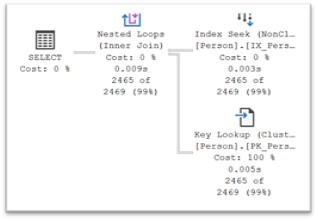
/* 2465 rows; 3821 logical reads */
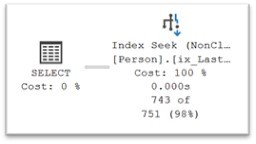
Somewhere north of 743 rows the key lookup I/O cost becomes high enough that the Optimizer switches to using a clustered index scan.
The tipping point determination isn’t always spot on, but it will be close enough most of the time, so generally speaking, you shouldn’t be overriding the Optimizer’s judgement, although you can.
So what if you really want the Optimizer to use your lovely index? You can literally “force” the issue with a Table Hint, but it’s probably not a good idea as it’s likely to increase your I/O costs – and more I/O means slower queries. Let’s use the FORCESEEK hint on the last couple of queries where the Optimizer chose to use a clustered index scan:
SELECT Title, FirstName, LastName FROM Person.Person WITH (FORCESEEK) WHERE LastName LIKE N'[D-F]%';
/* 1111 rows; 3420 logical reads */
SELECT Title, FirstName, LastName FROM Person.Person WITH (FORCESEEK) WHERE LastName LIKE N'[D-G]%';
/* 2465 rows; 7575 logical reads */
In the first instance, the I/O costs are actually a bit lower, but, most of the time this won’t be the case. Note that the I/O cost for the 2465 row query is nearly double that when the Optimizer was allowed to do its thing.
A better solution here is to create a covering index which will eliminate both key lookups and clustered index seeks! Since indexes are costly to create and maintain, focus on creating indexes to support your most important queries well. Let’s create an index that covers that last set of test queries then rerun them:
CREATE INDEX ix_LastName_FirstName__Title
ON Person.Person (LastName, FirstName) INCLUDE (Title);

SELECT Title, FirstName, LastName FROM Person.Person WHERE LastName LIKE N'D%';
/*  556 rows; 6 logical reads */

SELECT Title, FirstName, LastName FROM Person.Person WHERE LastName LIKE N'[DE]%';
/*  743 rows; 7 logical reads */

SELECT Title, FirstName, LastName FROM Person.Person WHERE LastName LIKE N'[D-F]%';
/* 1111 rows; 9 logical reads */

SELECT Title, FirstName, LastName FROM Person.Person WHERE LastName LIKE N'[D-G]%';
/* 2465 rows; 16 logical reads */
Now all 4 can be executed with index seeks and the I/O cost plummets greatly improving performance!
Happy Exploring!
I’d like to grow my readership. If you enjoyed this blog post, please share it with your friends!
Todays post, we will quickly see the two important functions count and count_big in SQL Server. Both functions return the number of records in a table. There are lots of interesting facts with count function and we will try to cover most of things, if you have any more points, feel free to share your thoughts as a comment.
Return types of count and count_big
As mentioned earlier, these two functions returns the number of records, however these two differ in return datatype, COUNT_BIG always returns a bigint data type value. COUNT always returns an int data type value.
Let us quickly see with a system procedure (sp_describe_first_result_set) to understand the return datatype as below:
Count and column name and non column name as parameter
The parameter value makes the difference on column name and non column name expression of the table involved. The below screen shot explains you the evaluation on the column name while we provide a valid column name as parameter otherwise, irrespective of the expression value, it just do not evaluate.
As a simple example, Select 1/0 always produces an error in SQL Server, but 1/0 as a parameter to count or count_big function does not evaluate it.
Count and NULL values in table
This is another interesting point to be aware in SQL Server NULL value column in a table plays a big role with count functions. If the parameter to a count function is a column name and the column is a nullable one, it is extremely important to be noted the NULL values will not be considered to count function.
The query processor ran out of internal resources and could not produce a query plan. This is a rare event and only expected for extremely complex queries or queries that reference a very large number of tables or partitions. Please simplify the query. If you believe you have received this message in error, contact Customer Support Services for more information.
As specified in the error message, its a rare event or exception. The important message from the exception is that “Please simplify the query”. When the query is complex, the relational engine would not be able to create a query plan due to various reasons like the environment resource limitation, reduced capacity etc. and end up with the above exception.
The case I observed is with a dynamic query execution. I do not exactly going to give the query, however tries to provide a more like scenario. I wanted to create a dynamic query with an IN condition where the list of items are separated with a comma like below.
declare @sql varchar(max)
Declare @values varchar(max)='val1','val2','val3'......'valhugenumber'
Select @sql = 'Select * from ' + @tablename + ' where ' + @columnname + ' in ('+@values+')'
Exec(@sql)
When executing this in one of environments (lower), the error is produced, however, the other interesting thing is its not happening in few other environments(eg. Production). As mentioned above, that is because it depends on the resources involved in various environment matters in producing the query plan.
Resolution:
From the analysis, the issue is associated with long (really long) list of values and when its parsing, the relational engine is not able to create a plan for the query execution. To resolve the issue, the query has been modified not to use the value list variable, instead populated those values into a temp table and then use the temp table as below.
declare @sql varchar(max)
create table #temp (valuelist varchar(100))
Insert into #temp values('val1'),('val2'),('val3'),......('valhugenumber')
Select @sql = 'Select * from ' + @tablename + ' where ' + @columnname + ' in (Select valuelist from #temp)'
Exec(@sql)
I’d like to grow my readership. If you enjoyed this blog post, please share it with your friends!
Advertisements
This site discusses and shares thoughts and experiences in SQL Server.







 SQLZealots