Category: SQL

How to identify the list of folders and files which has been modified on given date using SQL Server

In some situations you may face scenarios like “you need to know all the files and folders modified recently or modified after the specific date range to check and remove unnecessary files\folders from the Drive”, for this scenario you can make use of this script.

Pre-requisites:-

  1. PowerShell
  2. Access to “xp_cmdshell”

The below is the SQL stored procedure which uses 2 parameters (“Drive\Folder path” and “Date”), Date filter is an optional parameter, if you don’t supply any values, by default it will consider the files\folders which are modified from Yesterday (please note that you can change the default date filter value based on your requirement)

--EXEC [SP_Get_Directory_FilesInfo]  'D:\temp\scripts\','2020-04-01'
--EXEC [SP_Get_Directory_FilesInfo]  'D:\temp\scripts\'
Create or Alter PROCEDURE [dbo].[SP_Get_Directory_FilesInfo] 
(@path nvarchar(4000),@yyyymmdd date=NULL) AS 
BEGIN

declare @pscript nvarchar(4000)

IF @yyyymmdd IS Null
	SET @yyyymmdd= cast(DATEADD(DD,-1,getdate()) as date)

if right(@path,1)='\'
	set @path = substring(@path,1,len(@path)-1)

--To avoid using of system drive--
IF (Charindex('C:\',@path)>0  or charindex('c$',@path)>0) BEGIN
	Select 'Alert Message!! C-Drive is not supported' Return;
END

--PS Script--
set @pscript ='powershell.exe -ExecutionPolicy Unrestricted -command "Get-ChildItem -Recurse -Path "' + @path +
'" | Where-Object LastWriteTime -ge "' + CAST(@yyyymmdd  AS VARCHAR) +
'" | select-Object FullName, @{Name="''LastWriteTime''"; Expression={$_.LastWriteTime.ToString("''yyyy-MM-dd HH:mm:ss''")}}, Mode | Export-CSV -NoTypeInformation -path "' + @path + '\Outputfile.csv"" '

Exec xp_cmdshell @pscript, NO_OUTPUT;

drop table if exists tblcsv_data
create table tblcsv_data (aa nvarchar(max),bb nvarchar(max), mode nvarchar(100))

declare @c nvarchar(4000), @d nvarchar(4000)
set @c = @path + '\Outputfile.csv'

EXEC('
BULK INSERT tblcsv_data 
FROM ''' + @c +'''
WITH
(
    FIRSTROW = 2,
    FIELDTERMINATOR = ''","'',  --CSV field delimiter
    ROWTERMINATOR = ''\n'',   --Use to shift the control to next row
    TABLOCK
);
')

set @d = 'del '+ @c
Exec xp_cmdshell @d, NO_OUTPUT;

delete from tblcsv_data where aa like '%Outputfile.csv%'

drop table if exists tbl_FilesInfo
create table tbl_FilesInfo (id bigint identity(1,1), 
FileNames nvarchar(max), 
LastModified Datetime,
isDirectory bit null
)

insert into tbl_FilesInfo (FileNames,LastModified,isDirectory)
select replace(aa,'"',''),
replace(bb,'"',''),
case when mode='d-----"' then 1 else 0 end isDirectory
from tblcsv_data

if not exists (select 1 from tbl_FilesInfo) Begin
	Select 'Please Check!! There are no files having Date Range greater than [' + CAST(@yyyymmdd  AS VARCHAR) + ']' as Status
	return;
	END

select  FileNames,
LastModified,
isDirectory
from tbl_FilesInfo
order by isDirectory desc,
LastModified desc

END

Sample Input Folder:-

Execution of SP with 2 Parameters:-

Execution of SP without Date Parameter:-
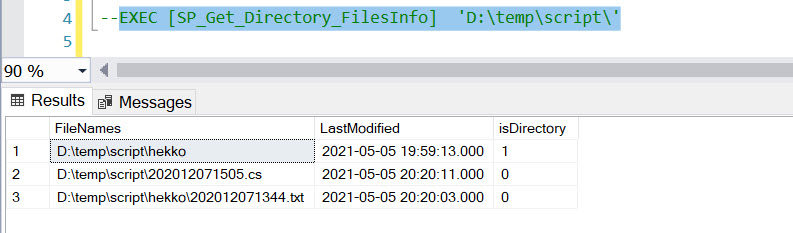
In addition to the above, here is the some example of PS scripts which you can directly use it in PowerShell and get the same desired results.

#PS Script 1 output will be displayed in powershell window
Get-ChildItem -Recurse -Path "C:\temp\script" | Where-Object LastWriteTime -ge "2021-04-02" | select-Object FullName, @{Name="''LastWriteTime''"; Expression={$_.LastWriteTime.ToString("''yyyy-MM-dd HH:mm:ss''")}}, @{Name = "Isdirectory"; Expression = {$_.Mode -replace "d-----","1" -replace "-a----","0"}}

#PS Script 2 output will be saved in .csv file
#If you want to save results to text file, please change export file name as Outputfile.txt
Get-ChildItem -Recurse -Path "C:\temp\script" | Where-Object LastWriteTime -ge "2021-04-02" | select-Object FullName, @{Name="''LastWriteTime''"; Expression={$_.LastWriteTime.ToString("''yyyy-MM-dd HH:mm:ss''")}}, @{Name = "Isdirectory"; Expression = {$_.Mode -replace "d-----","1" -replace "-a----","0"}} | Export-CSV "C:\temp\script\Outputfile.csv"

If you enjoyed this blog post, please feel free to share it with your friends!

@@ERROR & @@TOTAL_ERRORS in SQL Server

@@ERROR

This variable is used for a basic error handling mechanism in SQL Server earlier days (before SQL 2005). This variable is used to capture the error code of an immediate previous statement if any. If there is an error, it will return the error code else 0. It is to be noted that any statement will reset the value including the same statement. So ideally, If you want to capture for a longer scope, the immediate @@ERROR code can be assigned to a variable.

Let us quickly look at a simple example as below.

Select 1/0
Select @@ERROR, @@TOTAL_ERRORS

In the above code, the first statement is throwing the below error.

Msg 8134, Level 16, State 1, Line 1
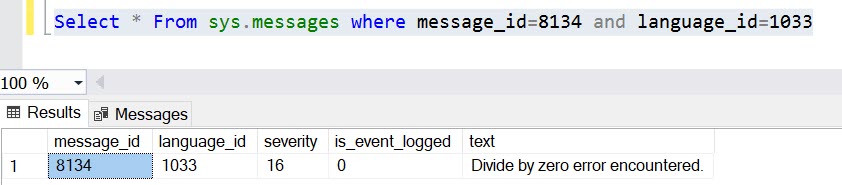
Divide by zero error encountered.

And the first @@ERROR statement will capture the error code, where as while executing the second @@ERROR, the value is rest to 0.

Once you captured the error code, we can verify the message it later from sys.messages system table as well.

@@TOTAL_ERRORS

This variable sounds similar to the above one, however, this has no relation with @@ERROR. This variable returns the number of disk write errors encountered by SQL Server since SQL Server last started/restarted.

I could not see lots of use cases if this variable. If you come across and already experienced, please feel free share those information as a comment.

If you enjoyed this blog post, please feel free to share it with your friends!
@@CONNECTIONS & @@MAX_CONNECTIONS in SQL Server

@@CONNECTIONS

It returns the total number of connections that includes both successful and failed made to SQL Server since it is started or restarted. Honestly, I have not used this variable anywhere and still could not really able to figure out a use case as well. Readers can share your thoughts if there are any.

@@MAX_CONNECTIONS

It returns the maximum number of simultaneous connections allowed to a SQL Server. Maximum user connections allowed by SQL Server by default is 32,767.

If you enjoyed this blog post, please share it with your friends!

How to script out ALL or FEW SQL Server Jobs using SSMS

Today, I have come across a requirement to generate the sql script for SQL Server Jobs (only few out of thousands). Most of us are familiar with an approach by right click on the sql job and choose ‘Script Job as’ to script out individually, but this is such a tedious job if you have couple of sql jobs to be scripted.

This post explains another simpler way using “Object Explorer Details“. It allows you to select multiple jobs to be scripted as below.

  1. Choose Object Explorer Details Menu from View main menu in SSMS.
  2. Select “SQL Server Agent” -> “Jobs” in Object explorer which lists all the SQL Agent Jobs in Details.
  3. Select the jobs (ALL or FEW) you want to script and then right click to select the scripting option.

The above steps will create all the selected jobs in a single query window as per the selection.

If you enjoyed this blog post, please feel free to share it with your friends!

CONCAT_WS in SQL Server

CONCAT_WS is a new function introduced from SQL Server 2017. CONCAT_WS denotes concatenate the strings with a separator. The syntax of CONCAT_WS is as below:

CONCAT_WS(separator,string1,string2.....stringN)

Prior to SQL Server 2017, we will have to use “+” operator to concatenate and carefully place the separator, that really adds lots of frustration to any developer (At least, I hate this in my initial coding days). CONCAT_WS is really a good winner in such use cases. In one of my use case, we wanted to send data from one table to external system, which works on BizTalk, as a pipe separated text file format. Earlier, we had to use carefully do lots of checks at bot SQL Server and BizTalk sides to avoid data issues like NULL handling etc. This function reduces a lots of work in such cases.

Few Points to be considered:

  1. This function skips NULL value. That means we will have to explicitly handle NULL value columns if the column needs to be considered in the output.
  2. The maximum number of parameters allowed is 254.
  3. This function implicitly converts all arguments to string type before concatenation.
  4. This function requires minimum a separator parameter and at least other two string parameters.